Burger Planet Fast Food Simulator Controls & Interaction Tips
Master camera, tickets, and station prompts so the kitchen UI stops fighting you.
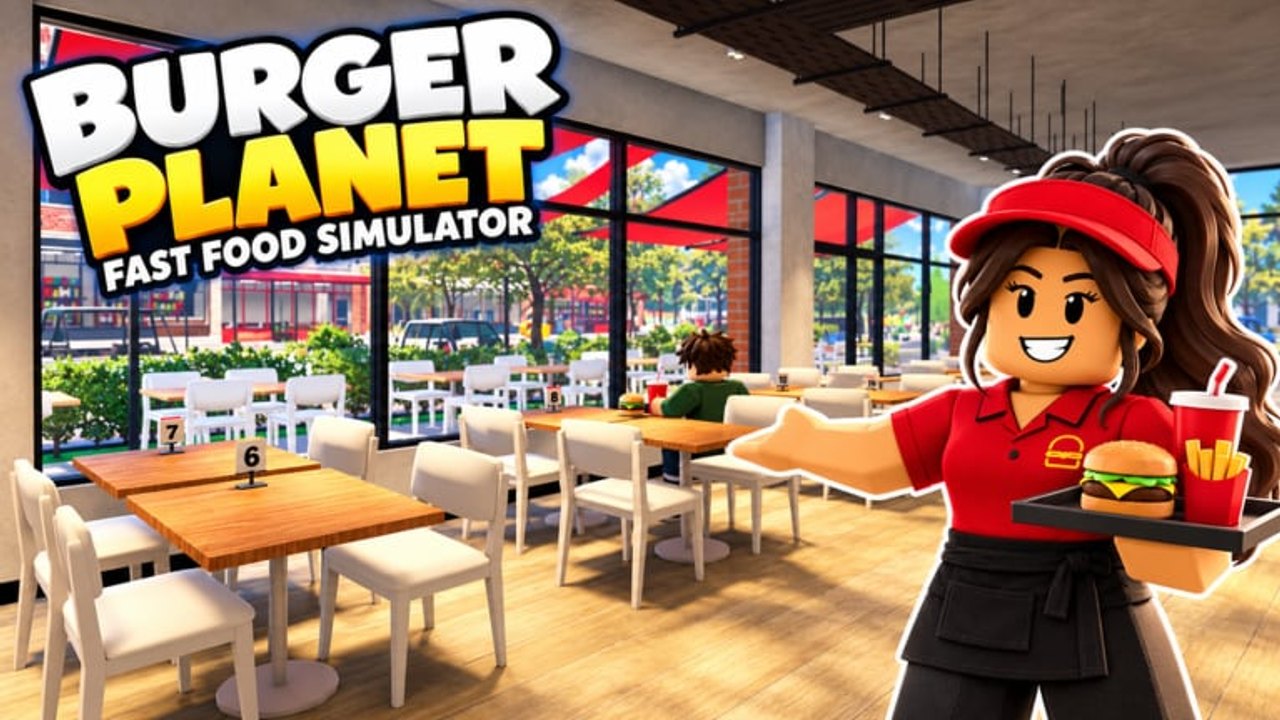
Burnt patties are not always a cooking problem—they are often a controls problem. This Burger Planet: Fast Food Simulator controls guide focuses on how to look, click, tap, and confirm interactions so tickets stay readable and stations respond on the first try. Roblox input varies by device, so treat this as a habit manual layered on top of your platform’s defaults from Getting Started.
Core interaction loop
Regardless of keyboard, controller, or touch:
- Point the camera at the station highlight
- Wait for the prompt to be real (not a customer still walking up)
- Interact once—do not spam
- Verify the world changed (patty placed, mop swinging, cup filling)
- Re-center camera on the next bottleneck
Spamming prompts during animations causes the “I clicked but nothing happened” spiral that voids tickets.
Camera discipline
Set a comfortable sensitivity before your first real OPEN day. In a dense kitchen you want:
- Enough yaw speed to check drive-thru without a full body turn marathon
- Not so much speed that tickets blur past
- A default height that sees the kitchen order screen and the grill in one mental map
When big multi-burger orders felt cut off historically, patches improved screen layout—still, zoom or focus tools on mobile matter. Mid-October notes mentioned phone players can tap an order for a closer look (Updates). Use that instead of guessing toppings.
Ticket and HUD habits
- Keep the order screen in your peripheral scan every few seconds
- Click/tap an order to reprint if the physical ticket is lost
- Read the entire ticket before you move your character
- In co-op, the expeditor should face the screen while grill cooks face heat
If the take-order prompt seems sticky, remember QoL that waits until a customer actually arrives at the register—do not stand mashing interact on empty air.
Station approach angles
Approach grills and fryers from a consistent side so your character does not orbit into a teammate. On the Food Truck, this is mandatory: decide clockwise flow (for example, hatch → grill → fryer → hatch) and enforce it.
When placing furniture or renovating, use the strong green/red placement tints added in October QoL so you are not fighting ghost collisions.
Movement during chaos
Bind your attention, not only your keys:
- Fire: stop cooking inputs, face extinguisher path, resolve, return
- Spill: short mop trip, do not carry a raw patty across the room “for efficiency”
- Dasher/troublemaker: interrupt intentionally; unfinished animations waste more time than a clean chase
Players who try to finish a pour while chasing a rat drop both tasks.
Device-specific notes
PC
- Use keyboard movement with mouse camera; hover prompts carefully
- Consider holding a finger near the interact key rather than hunting each time
- Alt-tabbing during rushes is how fires birth themselves
Console / controller
- Sensitivity first, then practice locking onto small props (cups, mop handles)
- Use the stick click or equivalent only if it helps; accidental clicks mid-dialogue hurt
Mobile
- Enable shift thumb habits: one thumb camera, one thumb move
- Use order tap-to-zoom when tickets get dense
- Keep UI scale readable; tiny HUDs cause topping misreads
- Prefer Wi-Fi for truck nights with friends—latency feels like broken controls
Co-op control etiquette
- Do not stand in the exact pixel someone needs to interact
- Call “on grill” before you claim it
- If you are lost, switch to mop/float instead of stealing the spatula
- Hosts in public lobbies promote people who navigate cleanly
Practice playlist (15 minutes)
- Walk the empty kitchen naming every station aloud
- Open, serve five tickets focusing only on zero misclicks
- Intentionally trigger a mop path between tickets
- Reset camera to your “home angle” after every handoff
When controls are not the issue
If prompts work but builds are wrong, study Kitchen Cooking. If you navigate fine but earn slowly, use Make Money Fast. If the UI changed after a patch, re-check Updates before assuming your device is broken.
Related links
Guides Hub · Tools checklists · Tier List · Scripts safety · Wiki
Clean inputs make clean burgers. Spend one short session owning your camera and prompts, and every later guide on this wiki suddenly feels easier.
Frequently Asked Questions
Quick answers for Burger Planet Fast Food Simulator on Roblox.
Why do my interacts sometimes fail in Burger Planet?
Usually the prompt is not ready yet, another animation is playing, or you are slightly out of angle. Face the station, wait for the real prompt, and click once.
How can mobile players read big orders?
Tap the order for a closer look when the kitchen screen feels cramped, and slow down long enough to read toppings before cooking.
What should I do if I lose a paper ticket?
Use the kitchen order screen to select the order and reprint it instead of guessing the build.
Are controls different on the food truck?
The input system is the same, but tighter space means camera discipline and movement routes matter more than in the full restaurant.